BitLocker, the Neverending Story
Diese Seite ist auch auf Deutsch verfügbar.
Full-disk encryption is one of the most basic measures for the physical security of end-user devices. If you follow IT security news even a little, though, it feels like a new BitLocker vulnerability gets published every few months. In this post I explain in detail how BitLocker works, which attacks exist, and how you can protect yourself against them.
Why does this matter in the first place? Without full-disk encryption, a stolen device means you lose not just the hardware but the data on it as well. On top of that, a malicious person can easily escalate their privileges (local privilege escalation). Stolen hardware is annoying; stolen data can turn into a real security incident or a data breach.
One important point often gets forgotten here: encryption is only as good as its configuration. BitLocker in particular, being the most widely used form of full-disk encryption, has to be configured correctly. Otherwise the encryption can be circumvented entirely by someone with enough know-how. That is bad news, because once a laptop has been stolen, you need to be able to rely on the encryption.
I will work through this from the bottom up: first, how full-disk encryption and the components involved actually work together, then the concrete attacks and why they work, and finally, of course, what you can do about them.
Table of Contents
IT-SECX presentation
Here is the presentation from IT-SECX 2026:
The talk itself was held in German, so there is also the original German deck.
The basics of BitLocker and full-disk encryption
The basics of full-disk encryption are actually fairly simple. Established encryption algorithms are used to encrypt the data. To decrypt it, a key has to be entered.
That is fine and secure, as long as certain conditions are met. The key has to be long and unguessable so it is not vulnerable to offline brute-force attacks. On top of that, the hardware and firmware it is entered on has to be trustworthy. Otherwise an evil maid attack would be possible. For example, a malicious person with access to the locked device could tamper with the boot process and display a fake login prompt that sends the entered password back to them.
There is an established countermeasure for this by now: the Trusted Platform Module (TPM). A TPM version 2.0 is a minimum requirement for Windows 11, for instance. Accordingly, every current mainboard has one built in.
What is it? A hardware module that stores the actual BitLocker key (slightly simplified). As users, we never see that key at all. The PIN we enter is used to release the actual key. Think of it like a bank card. My PIN unlocks the card, and the card holds the secrets needed to carry out the transaction.
That protects us against brute-force attacks: the actual key is long and random, so trying out candidates is hopeless. The only vulnerable part would be the PIN, but the PIN can only be brute-forced through the TPM, and the TPM implements countermeasures such as allowing only a certain number of failed attempts per unit of time (anti-hammering (opens in a new tab)). In principle, much like the bank card again.
The far more important feature of the TPM, though, is that it verifies whether the firmware or hardware has changed. Why? Another attack vector would be manipulated hardware or firmware, for example a malicious UEFI update, or booting a fake operating system. That is exactly what the TPM checks as well (depending on the configuration of the PCR profiles). If something has changed, it no longer unlocks. This also happens when you install new hardware or when a component fails, by the way. So always keep the recovery key, even if you are sure you will not forget your password.
So far, so good. But Microsoft came up with two things that water this down:
- centrally stored recovery keys, and
- TPM-only mode
Recovery keys are passwords you can enter instead of the TPM PIN, for example when the hardware has changed or recovery is needed for some other reason. That is fundamentally good and important, because it means you always have a way to decrypt the data, even without the TPM.
Now you can imagine that a recovery key like that is highly sensitive and has to be stored securely. One option is to print the key and store it physically in a safe. There is also the option of storing the key centrally, for example in your Microsoft account. In my opinion that is fine for most use cases, but you have to keep in mind that Microsoft could then decrypt your disk if they also had physical access to it. That is mostly relevant for criminals (so that the police cannot decrypt their laptops). To access the data you always need the key and the physical device. In early 2026 there was an outcry about this because the FBI got access to the keys.
Another option (for companies) is to store the recovery keys in Active Directory or in Entra ID/Intune. That is fairly standard in companies, simply because employees forget their PINs or UEFI updates go wrong. It also means internal IT has the ability to decrypt the devices.
The important thing to understand here is simply that the recovery key is a second key for decryption. Whoever has it can decrypt my device. I see centrally stored recovery keys as a feature rather than a security hole. But if this matters to you, take a look at where your recovery keys are actually stored and who can access them. Then decide, based on your threat model, whether that is a problem.
TPM-only mode is the more interesting one. Unfortunately it is also the default setting in Windows, and it is relatively hard to switch to TPM+PIN mode (it works through group policies (opens in a new tab), for example). In TPM-only mode there is no PIN anymore. The TPM simply decrypts. “Simply” is an overstatement, because the checks for whether hardware and firmware have been modified are of course still there.
At first glance that sounds very insecure. In practice, though, it is better than it sounds. Since the hardware and firmware cannot be modified, there is not much a malicious person can do here. If the device is configured normally, it just boots to the Windows logon screen. And there, under normal circumstances, there is no way to read any data without entering a valid password. If I boot from a USB stick with a foreign operating system, for example, the TPM detects that and does not release the key. (A Microsoft-signed boot manager is not a foreign operating system, by the way, and that is exactly what bitpixie builds on further down.) So the malicious person now actually needs a password to read any data. And even then: the logged-in user does not necessarily have admin rights. Without admin rights, BitLocker cannot be disabled. If there is no other privilege escalation path, the malicious person is stuck here too, because they cannot read all the data.
Big “but”: every single attack I know of targets exactly this TPM-only configuration. The attacks are always based on other components, never on BitLocker itself.
There is a statement from the YellowKey developer that he can attack BitLocker in a TPM+PIN configuration too. That attack requires the user to enter their PIN once on the prepared laptop, though, so it is more of an evil maid attack than an attack that works on a stolen laptop. The author described this himself (opens in a new tab) and did not publish the PoC for it. Interesting detail: the YellowKey developer says he uses BitLocker himself and thinks BitLocker is great as such:
I didn’t release the PoC because I rely on bitlocker myself, bitlocker is great, the issue is it have to rely on retarded software to function which is a huge flaw.
Selected attacks
Wack0 maintains a very nice overview of known attacks (opens in a new tab) on GitHub.
I want to go into a few of them in detail here.
Hardware attacks
Hardware attacks are usually impressive to demonstrate and hard to fix, but depending on the attack they do not work reliably on every device.
DMA attack
I demonstrated a direct memory access (DMA) attack myself at IT-SECX in 2021. The idea is simply that certain hardware (FireWire or GPUs, for example) can write directly to RAM. There is dedicated attack hardware (keyword: PCILeech (opens in a new tab)) that I physically plug in. The device recognizes the hardware as a graphics card, for example. The attack hardware can then write straight into memory via direct memory access and execute commands that way, for example opening an admin shell, even at the logon screen.

On supported hardware, Windows 11 now enables Kernel DMA Protection (opens in a new tab) by default.1 With it, the IOMMU blocks all DMA-capable devices whose drivers do not support DMA remapping as long as nobody is logged in or the screen is locked. According to Microsoft, 1394/FireWire, PCMCIA, CardBus, and ExpressCard are not covered; there are separate BitLocker policies for those. Thunderbolt itself has also had its own problems independently of this (see Thunderspy (opens in a new tab), 2020). And there are attacks that work by disabling hardware support for virtualization (VT-d) (opens in a new tab), which renders this countermeasure ineffective.
Reading the TPM physically
You see this at conferences every now and then as well. Here you physically eavesdrop on the connection to the TPM, that is, when it transmits the key. Apparently this works quite well (I have not done it myself): Pulse Security has documented the process (opens in a new tab) cleanly, and stacksmashing demonstrated it on a Surface device in a video (opens in a new tab). It is evidently easier on older devices, because TPMs have gotten very small by now. But there are ways here too. All of this only works in TPM-only mode again, of course.
By now there are various countermeasures here as well, such as firmware TPMs (fTPM), where the key is no longer transmitted over a bus at all, or session/parameter encryption, where communication with the TPM is encrypted. Whether that applies depends on the hardware in the case of fTPM, and on whether the boot manager and operating system actually use encrypted TPM sessions in the case of session encryption.
Software attacks
Software attacks are much more interesting, in my opinion, because they work on the device itself and you do not have to buy and lug around special hardware.
bitpixie
bitpixie (CVE-2023-21563) is the vulnerability that brought me back to BitLocker after a long time. A very interesting vulnerability that is hard to fix. It was first discovered in 2022 (but has existed since 2005), then patched, then made public in 2023, and then demonstrated again in a CCC talk (opens in a new tab) at the end of 2024, because the patch still was not final. The last time I exploited this vulnerability was at the end of 2025, on a freshly installed device. How can that be, when patches exist?
First, maybe, what this is actually about: there is a special kind of reboot called a “PXE soft reboot”. It happens when a boot fails and a recovery image is loaded as a result. In that case the BitLocker key is not cleared from memory.
So the original attack was to provoke such a “PXE soft reboot” and then boot into Linux, for example, and read out the key.
Over time there were more and more restrictions here, meaning it got harder to exploit the vulnerability. For example, in certain configurations it is no longer possible to boot Linux, only Windows. Then the next problem is that you have to exploit a vulnerability inside that Windows to get a command line at all. To do that, I have to boot an outdated, vulnerable Windows. That is also why the countermeasure here is to disable outdated operating systems in Secure Boot. This is a complex attack; Neodyme has written up the details (opens in a new tab).
The problem here, though, is that the countermeasure is an update of the Secure Boot keys (including revocation of the old keys, see KB5025885 (opens in a new tab)). That has to happen in the UEFI, and not everyone has applied it. So it can easily be the case that a new device with all updates installed is still vulnerable. Since all of this happens on PXE boot, it also depends a bit on the remaining settings, such as whether a UEFI password is set.
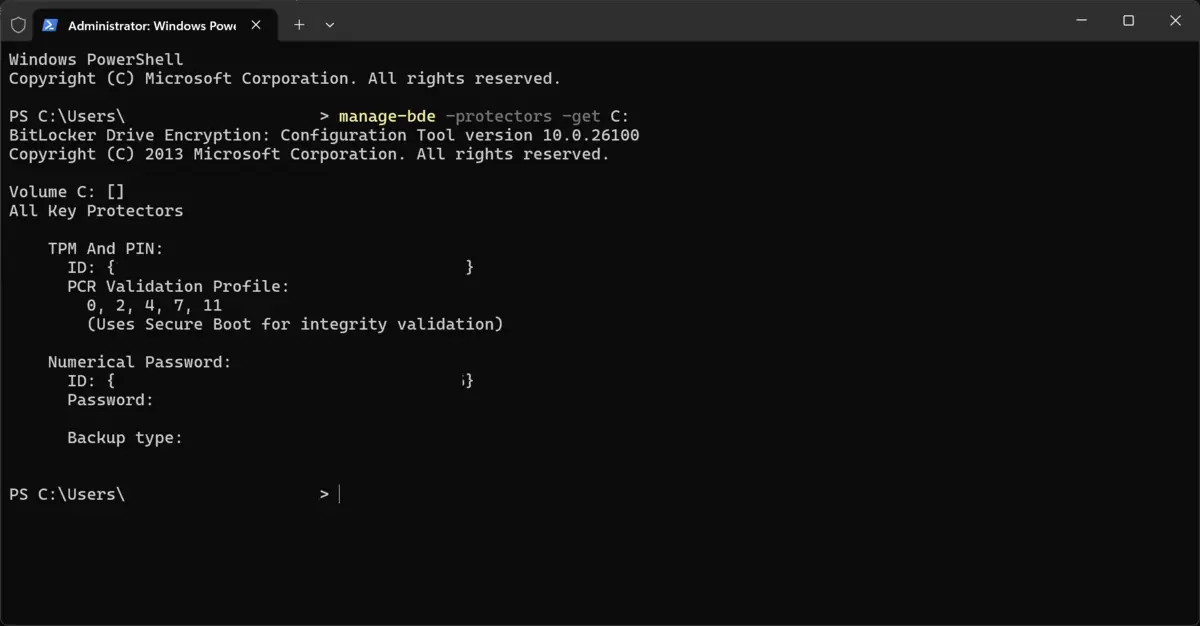
Systems that have their PCR validation profiles set to 0, 2, 4, 7, 11 are not vulnerable here either. The decisive one is PCR 4, the measurement of the boot manager itself. The Windows default configuration only measures 7, 11, and PCR 7 merely reflects the Secure Boot state. An old, vulnerable, but still validly signed boot manager does not change PCR 7, and that is exactly what the downgrade exploits.
Neodyme explained in a second article (opens in a new tab) why there was no clean fix for so long.
YellowKey
That is why we are here, right? The newest and coolest way to bypass BitLocker.
What makes it interesting is how simple the attack is. The “exploit” is really just a simple file on a USB stick. And of course also that it was published as a 0-day, with a lot of drama around Microsoft. On top of that, the vulnerability was open for about a month.
This is not really a vulnerability in BitLocker either, but in the Windows Recovery Environment (opens in a new tab), which by design is allowed to access an unencrypted Windows. There is a CMD in the recovery environment, by the way, but it is configured so that opening it prompts for the recovery key.
What that means, though, is that if code execution is possible in the recovery environment in any way, I can access the unencrypted disk.
As a countermeasure you could therefore disable the recovery environment. By now there is a patch for the recovery environment as well.
A note from practice: the WinRE image is not always patched together with the operating system. So it is worth checking after patch day whether the recovery environment on your devices is actually up to date (reagentc /info), instead of assuming that “Windows is up to date” also means “WinRE is up to date”.
Countermeasures
As we can see, most attacks do not target BitLocker itself at all, but other components. BitLocker narrows the attack surface quite a bit, and these attacks then find a detour, for example through the recovery environment, by eavesdropping directly on the hardware, or via DMA.
There is one countermeasure that has protected against nearly all attacks so far: pre-boot authentication, meaning BitLocker with TPM and PIN. That narrows the attack surface even further. A password prompt comes up immediately, not later on (as with the Windows logon in TPM-only mode). Of course there are still evil maid attacks, and the $5 wrench (opens in a new tab) will work on most people as well, but this is the best defense we have.
That is why I always recommend TPM with PIN for important devices. Risk is always a trade-off, though: for many devices, TPM-only is sufficient in my opinion. But then I have to configure it correctly:
- Secure Boot enabled and a UEFI password. The Secure Boot certificates also have to be up to date (KB5036210 (opens in a new tab) and KB5025885 (opens in a new tab)); you can check with
[System.Text.Encoding]::ASCII.GetString((Get-SecureBootUEFI db).bytes) -match 'Windows UEFI CA 2023' - Pin down the boot order in the UEFI: disable booting from USB and network (PXE) and lock the boot menu behind the UEFI password. bitpixie needs a boot from external media or PXE. That alone is not sufficient protection, but it raises the bar considerably.
- “Virtualization Based Security” enabled (you also have to verify that the setting is actually active):
systeminfo | findstr /I "Virtualization-based security"(only works on English-language Windows!) - PCR validation profiles: 0, 2, 4, 7, 11 (
manage-bde -protectors -get C:) - Install updates (generally), and explicitly keep the WinRE image in mind while doing so
Microsoft has documented the countermeasures (opens in a new tab) as well.
Conclusion
In my opinion: BitLocker with TPM and PIN lets you sleep soundly. I run that setup (including the countermeasures above), and if my laptop gets stolen today, I will be annoyed, buy a new one, and that is it. I am not afraid that anyone can steal my data.
With TPM-only, unfortunately, that is not the case. With a good configuration I am relatively well protected; bitpixie does not work if the PCR validation profile is set to 0, 2, 4, 7, 11, for example. So if I use TPM-only, a good configuration is essential.
But I can only really sleep soundly with pre-boot authentication.
If you are just getting started with BitLocker: I covered the setup, including integration with Active Directory and Entra ID, in Securing BitLocker: Initial Setup, and bitpixie in detail in Bypassing BitLocker Without a Screwdriver.
How secure is your standard client, really?
The BitLocker configuration is one of the standard checks I run against your standard Windows image as part of an Internal IT Infrastructure Penetration Test: PCR profiles, Secure Boot status, VBS, the state of the recovery environment, and the question of who is actually allowed to read your recovery keys. On top of that come topics like extracting credentials from memory.
Do you know which mode BitLocker is actually running in on your devices, and whether the configuration holds up against a malicious person who drives home with the stolen laptop? That is exactly what I test.
Still weighing which scope is the right one? The Pentest Provider Checklist helps you evaluate.
Questions about BitLocker, Windows clients, or pentests? Contact me here.
Details on the hardware requirements: https://learn.microsoft.com/en-us/windows-hardware/design/device-experiences/oem-kernel-dma-protection (opens in a new tab) ↩︎
Related Service
Related Blog Posts
- Bypassing BitLocker Without a Screwdriver: bitpixie and What You Can Do About It
- Dump Hashes in Windows 11 24H2
- Securing BitLocker: Initial Setup and Defending Against Attacks
- The Penetration Testing Buyer's Guide: Scope Right, Spend Smart
Book appointment | martin@vidrasec.com | +43 670 3081275 | +43 670 3081275 (opens in a new tab) |